By the end of the guide, the chatbot asks for criteria before suggesting properties, collects the details of visitors who want a viewing or a call back, and your team receives each request with the conversation that explains it.
Before you start
- A Chatyx chatbot fed with the agency’s listings, imported from a Bien’ici, SeLoger or Zimmo agency page, or from your own pages.
- The email address that will receive requests.
- The list of criteria your agency needs before arranging a viewing.
- Access to the chatbot’s customization to set its mode and instructions.
1. Define a qualified request
List what your team wants to know before calling back: buying or renting, property type, number of rooms or floor area, area, budget, availability for a viewing. Keep the list short: each extra question makes some visitors give up.
Put these expectations in the chatbot’s Custom instructions, Internal tab. Fictional example: “Before suggesting a viewing, ask for the area and the budget. Never confirm a time slot: say the agency will call back to set it.”
2. Switch on the real estate mode and lead capture
In the Internal tab, choose the Catalog / Real estate Chatbot mode: “guided search, needs qualification and listing suggestions”. Enable Rich display so that listings appear as cards with photos when the data is available.
Enable Lead capture, then fill in the Notification email: this address receives the details visitors leave. Save the configuration. The chatbot lead capture page details the form and consent.
3. Understand how a conversation unfolds
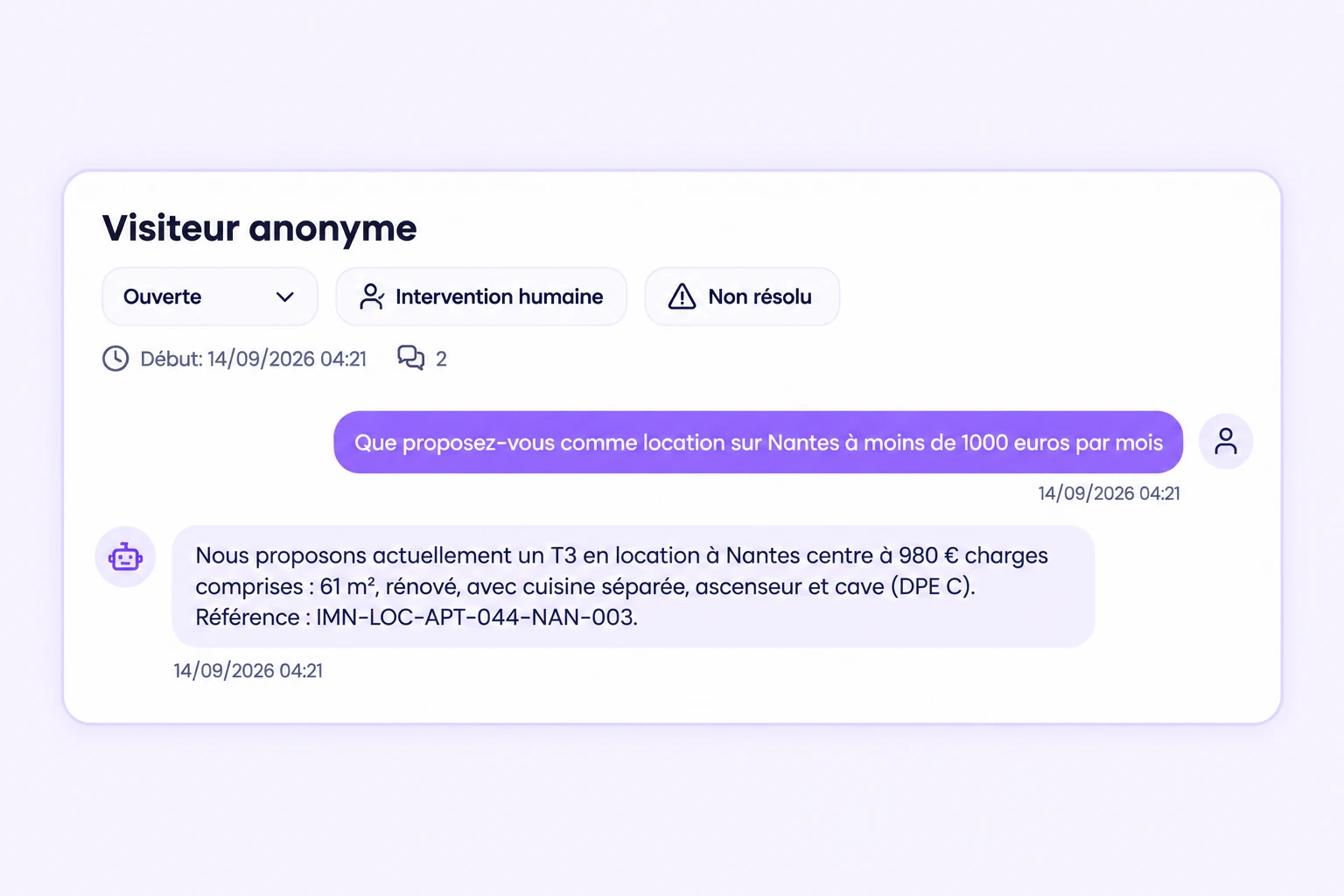
The visitor describes what they are looking for in their own words. The chatbot asks for any missing criteria before searching, rather than suggesting properties at random, then shows the agency’s matching listings with their link.
If nothing matches, or if the visitor wants to view a property, the chatbot offers to take their details and availability, with their consent. It does not book a slot in a calendar: it collects the request, and your team confirms the viewing.
The chatbot only knows the imported listings (see the guide import and resync property listings): it does not discuss the market or other agencies’ properties. A listing removed from your agency page leaves its answers once a resync has confirmed the removal.
4. Receive and handle the request
Each request arrives by email at the notification address and stays available in the dashboard, with the full conversation and its summary. Your team sees the stated criteria, the listings shown and the availability given.
Use statuses and internal notes to track call-backs. Call back with the context: the visitor does not have to repeat what they already told the chatbot.
5. Test before going public
Compare with the real estate chatbot demo if useful, then play four scenarios with your own details: a search that finds properties, a search with no result, a viewing request on a specific listing, and an off-topic question.
Check that criteria are asked at the right moment, that the suggested properties match, that the request email arrives and that the conversation appears in the dashboard. Adjust the instructions if the chatbot promises a slot or asks too many questions.
Check the result
- The chatbot asks for criteria before suggesting properties.
- The suggested listings exist and match the criteria given.
- A viewing request arrives by email and appears in the dashboard with the conversation.
- No slot is promised: confirmation stays with the agency.
Troubleshooting
The chatbot suggests properties that do not match.
Check that the imported listings are up to date and resynced, and that the Catalog / Real estate mode is selected. Compare the suggested properties with the criteria given in the conversation, then refine the instructions if needed.
No request email arrives.
Check the Notification email and that Lead capture is enabled. If your mailbox filters unknown senders, allow the chatyx.fr domain, not just one address: some filters quarantine messages without telling you.
A visitor wants to book a precise slot.
The chatbot collects their availability but does not book in a calendar. Your team calls back to confirm. Say so in the instructions so the chatbot states it clearly.
Need help with your setup? Email support@chatyx.fr.
Run your own test
Start with a clear scope and a few reliable sources. Check the answers before expanding to visitors.
Open Chatyx