Your target is an agency source with associated listings, a checked resync and tested chatbot answers for a few known properties.
Before you start
- A Chatyx chatbot and access to its Data sources.
- A public agency page on Bien’ici, SeLoger or Zimmo with listings you are authorized to use.
- Available source storage in your plan.
- A few reference listings with price, location, property type and public URL to compare after import.
1. Find the right agency page
Copy the page that groups your agency’s listings. A city search, portal homepage or single property page does not replace an agency page.
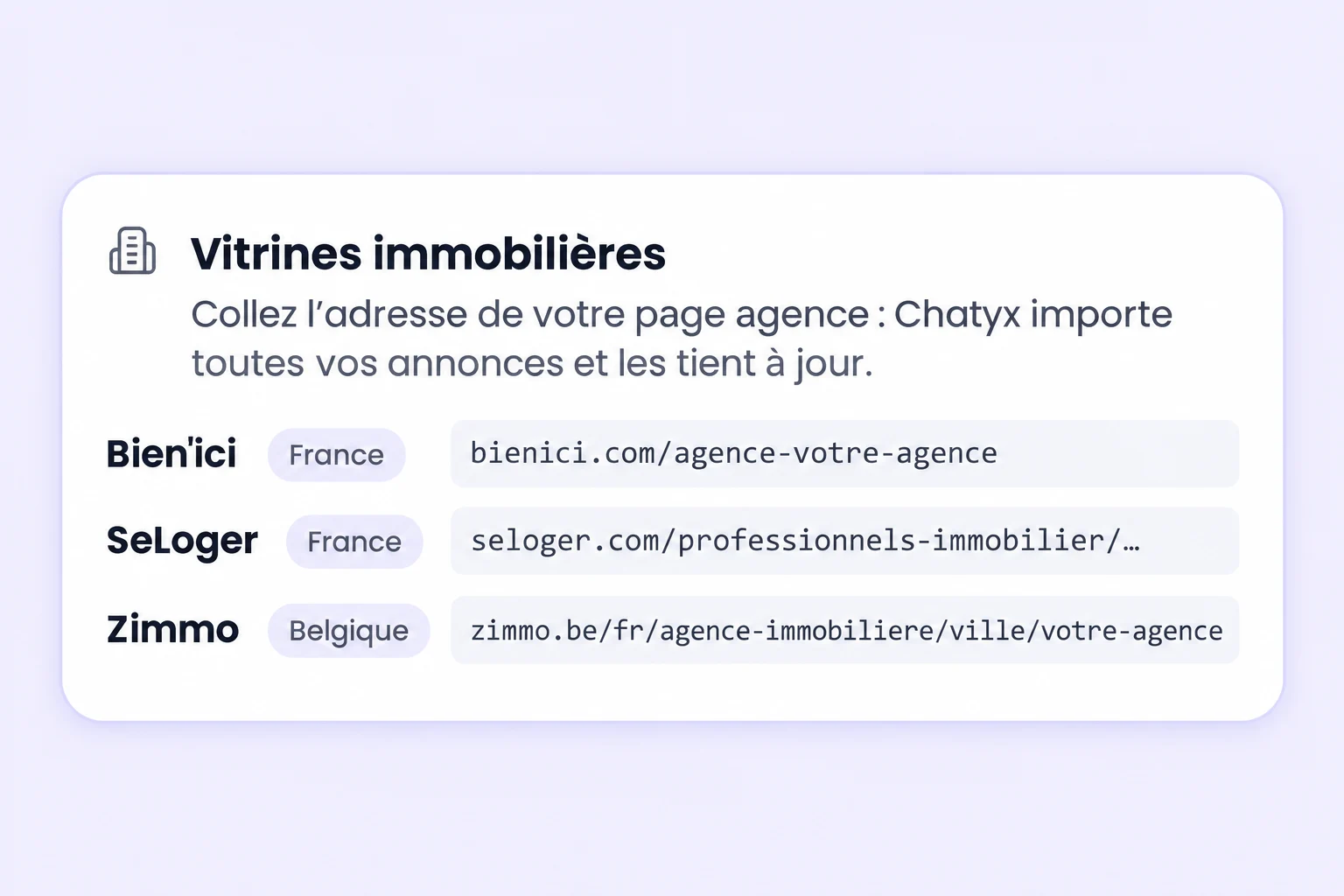
Recognized portals are Bien’ici and SeLoger in France, and Zimmo in Belgium. Use the professional agency page on SeLoger. On Zimmo, open the individual agency profile rather than a city directory. On Bien’ici, prefer the agency page that clearly identifies its catalogue.
Open the address in a private window and check that the published listings are visible without signing in. Use your actual agency URL instead of inventing one from an example.
2. Add the URL to the chatbot’s sources
Under Data sources, select the real estate chatbot, open the URLs tab and choose Add URLs. Paste the agency address into the main URL field. The interface indicates whether it recognizes a property portal and a suitable page type.
Read the notice before submitting. An agency page triggers discovery of its listings. The aim is to keep properties as separate sources linked to the agency so changes can be tracked.
Wait for processing before testing answers. A discovered link count alone does not prove all listings are ready; also check the individual source statuses.
3. Compare the imported listings
Open the agency source card and its listings. Compare several properties with their public pages: link, price, location and main details. Check missing listings or processing errors before opening the chatbot to visitors.
Build a test question from your real catalogue. A fictional example is “Do you have a three-room apartment below €250,000?” Adapt the criteria to actual listings and inspect every result. This example budget is not information about your agency.
An import does not guarantee correct answers to every search. Review the real estate chatbot’s settings and instructions, then test a search with no matching properties.
4. Request and monitor a resync
Use Re-synch on the agency source card to request an update. Wait for it to finish before requesting another. Then inspect added, removed and modified counts along with the listing statuses.
The interface also offers Disabled, Daily, Weekly and Monthly frequencies. Choose a frequency suited to your catalogue and check subsequent results. A configured schedule does not replace checking the latest outcome.
A listing missing from discovery is not necessarily removed immediately. Chatyx looks for evidence of unavailability before removal, reducing the risk that a temporary portal issue removes a valid property. Timing depends on page access and source processing.
5. Verify an actual change
When a price or listing changes on the portal, record its URL and new information. Run a resync, wait for the relevant source to be processed and ask a question that checks the change.
Compare the chatbot answer with the source page. If they differ, inspect the listing and its status before treating the update as complete. Keep the URL and check time for troubleshooting.
Portals are external sources: availability, page structure and access conditions can change. Success with one agency does not guarantee an exhaustive import across every catalogue.
Check the result
- The source is recognized as an agency and listings are individually accessible.
- Several imported properties match their public pages and key criteria.
- A resync completes and its result is checked.
- Answers respect the tested criteria and an actual change is verified after processing.
Troubleshooting
The URL is rejected or not recognized as an agency.
Copy an actual agency page, not a city directory or property search. Automatic agency recognition in this guide covers Bien’ici, SeLoger and Zimmo. An ordinary web URL does not automatically become an agency source.
No Bien’ici listings are discovered.
Check the agency page and its public listings. The agency card offers an optional Bien’ici account identifier when discovery returns nothing. Do not guess it: obtain the identifier for your agency or ask support.
A listing count or detail seems wrong.
Compare specific links and processing statuses rather than only the portal’s total. Check public page availability, processing errors and storage capacity. A temporarily unavailable page or a pending source can explain a difference.
Need help with your setup? Email support@chatyx.fr.
Run your own test
Start with a clear scope and a few reliable sources. Check the answers before expanding to visitors.
Open Chatyx