Channels, sources and connectors
Connect Chatyx to your business
Adding a chat window, providing documents and connecting a store are three different operations. Here is what each connection does and what you need to prepare.
Choose the role of your connection
- Messaging channel
- Where visitors talk to the chatbot: your website, WhatsApp or Telegram.
- Widget installation
- The script that displays the chatbot on your site, including WordPress.
- Knowledge source
- The documents and pages Chatyx uses to prepare its answers.
- Business connector
- Specific access to a service’s data, such as Shopify products and orders.
Channel and installation
Your website
Display the Chatyx widget on your site and answer from your chatbot’s sources. The integration script is available in its settings.
- What to prepare
- A configured chatbot and permission to add a script to the site. Check the allowed domain and your site’s consent rules.
- Scope
- Installing the widget does not automatically give it access to customer accounts, orders or private pages.
Widget installation
WordPress
Add the widget script to the WordPress pages where you want the chatbot, using your theme or an authorised code-insertion tool.
- What to prepare
- Administrator access and a WordPress setup that allows custom scripts. Test the display after installation.
- Scope
- This installs the widget. It does not turn WooCommerce into a native order connector.
Messaging channel
WhatsApp Business
Connect a chatbot to WhatsApp Business Platform to answer messages received on the configured number.
- What to prepare
- The required Meta Business access, an eligible number and any validations requested by Meta. Connection depends on the business account configuration.
- Scope
- Meta’s messaging rules and fees apply. A personal WhatsApp number cannot be connected simply by adding the widget.
Messaging channel
Telegram
Create a Telegram chatbot in Chatyx and associate it with the bot created through BotFather to answer its visitors’ messages.
- What to prepare
- A Telegram bot and its BotFather token, entered only in Chatyx’s secure settings.
- Scope
- The connection is for that Telegram bot. It does not import personal messages or promise a unified history across channels.
Knowledge source
Documents, web pages and sitemaps
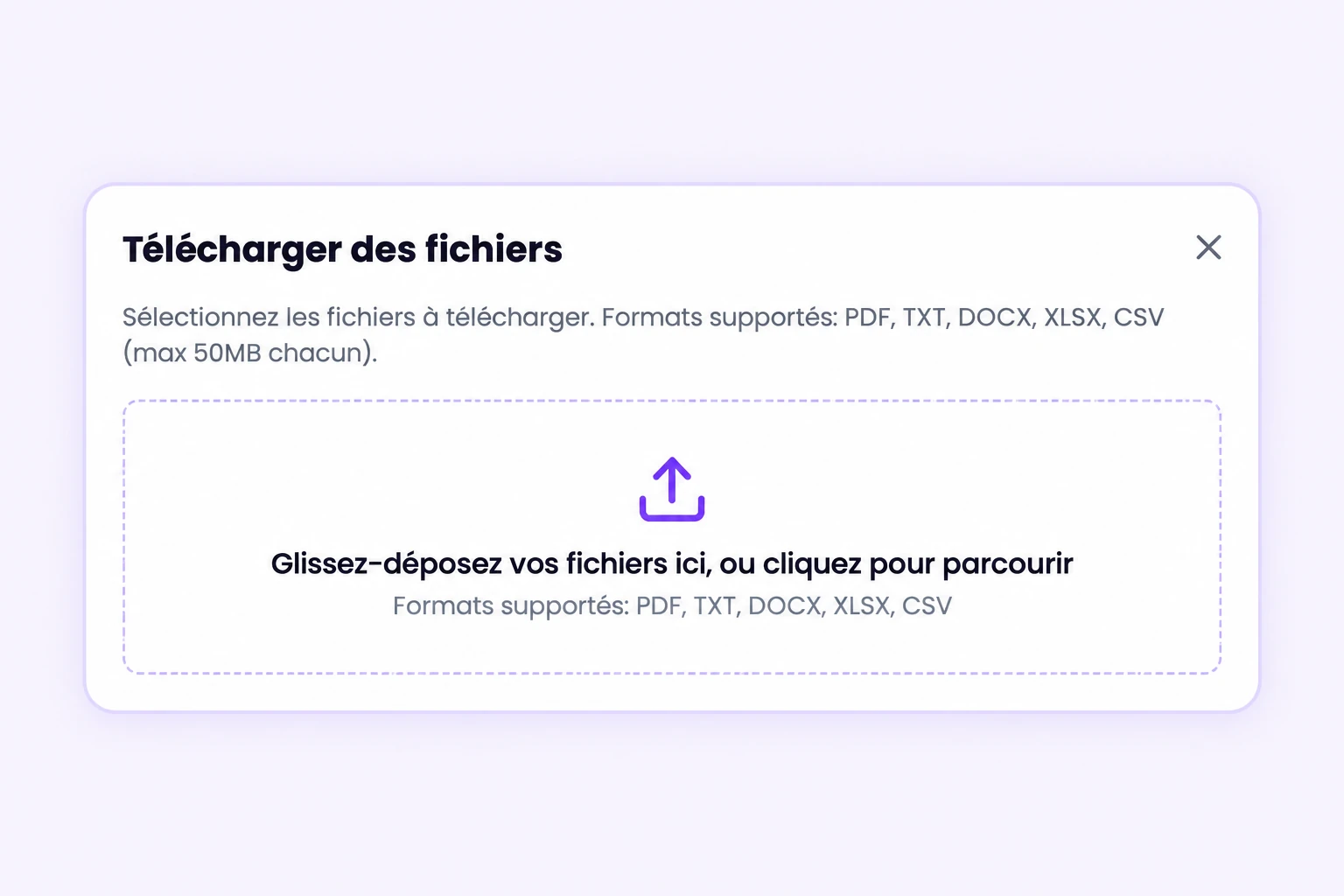
Add PDF, DOCX, TXT, XLSX or CSV files, public URLs or a web-page XML sitemap. Chatyx uses the imported content to answer questions.
- What to prepare
- Current, accessible content you are authorised to use. Check the import, your plan limits and answers to representative questions.
- Scope
- A sitemap lists web pages; it does not replace a business data feed or an order API. Importing a protected or blocked page may fail.
Business connector
Shopify
Connect your store so a chatbot configured in store mode can look up the catalogue and order status.
- What to prepare
- A Shopify store, its domain and Shopify application API access with the necessary permissions. Configure these credentials in Chatyx.
- Scope
- The connector reads available data. It does not perform refunds, returns or order changes on behalf of your team.
Catalogue import
Real estate sources
Provide a chatbot in catalogue / real estate mode with listing sources supported by Chatyx to search for and present properties.
- What to prepare
- A compatible source, up-to-date listings and a check of the import result. Formats and synchronisation depend on the source type.
- Scope
- This is not universal access to all property portals or CRMs. Your team confirms availability and arranges viewings.
Start with useful sources
Your documents are the starting point for answers. Import representative content and test it before connecting more channels.
A connection that fits your needs
Test the scenario closest to your business, then choose a plan for your volumes. For a specific connection, describe the tool and the action you need in your demo request.
Your next practical step
WordPress, WhatsApp, real estate: follow the guides